
hexo使用技巧
将博客文件保存为UTF-8即可解决问题。
方法:
1.将博客文件保存为UTF-8
用记事本打开本地的博客文件“xxx.md”,然后点“另存为”,“编码(E):”选择“UTF-8”,
点击“保存”,替换原文件。
2.重新生成,部署,博客乱码即消除。
Hexo的使用
接下来,我们要对Hexo做更全面的了解,才能做出个性化一的博客。
3.1 目录和文件
先来看一下,默认生成了哪些东西。
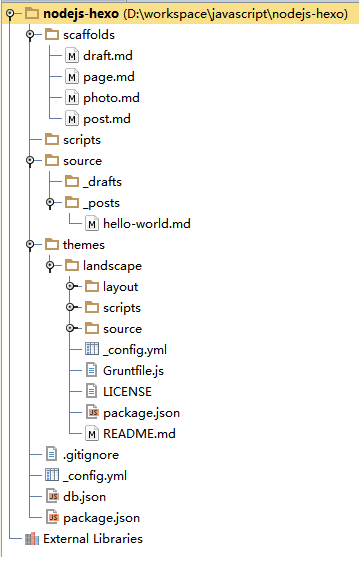
- scaffolds 脚手架,也就是一个工具模板
- scripts 写文件的js,扩展hexo的功能
- source 存放博客正文内容
- source/_drafts 草稿箱
- source/_posts 文件箱
- themes 存放皮肤的目录
- themes/landscape 默认的皮肤
- _config.yml 全局的配置文件
- db.json 静态常量
在这里,我们每次用到的就是_posts目录里的文件,而_config.yml文件和themes目录是第一次配置好就行了。
_posts目录:Hexo是一个静态博客框架,因此没有数据库。文章内容都是以文本文件方式进行存储的,直接存储在_posts的目录。Hexo天生集成了markdown,我们可以直接使用markdown语法格式写博客,例如:hello-world.md。新增加一篇文章,就在_posts目录,新建一个xxx.md的文件。
themes目录:是存放皮肤的,包括一套Javascript+CSS样式和基于EJS的模板设置。通过在themes目录下,新建一个子目录,就可以创建一套新的皮肤,当然我们也可以直接在landscape上面修改。
3.2 全局配置
_config.yml是全局的配置文件:很多的网站配置都在这个文件中定义。
- 站点信息: 定义标题,作者,语言
- URL: URL访问路径
- 文件目录: 正文的存储目录
- 写博客配置:文章标题,文章类型,外部链接等
- 目录和标签:默认分类,分类图,标签图
- 归档设置:归档的类型
- 服务器设置:IP,访问端口,日志输出
- 时间和日期格式: 时间显示格式,日期显示格式
- 分页设置:每页显示数量
- 评论:外挂的Disqus评论系统
- 插件和皮肤:换皮肤,安装插件
- Markdown语言:markdown的标准
- CSS的stylus格式:是否允许压缩
- 部署配置:github发布
查看文件:_config.yml
# Hexo Configuration
## Docs: http://hexo.io/docs/configuration.html
## Source: https://github.com/tommy351/hexo/

# 站点信息
title: Hexo博客
subtitle: 新的开始
description: blog.fens.me
author: bsspirit
email: bsspirit@gmail.com
language: zh-CN

# URL
## If your site is put in a subdirectory, set url as ‘http://yoursite.com/child‘ and root as ‘/child/‘
url: http://blog.fens.me
root: /
permalink: :year/:month/:day/:title/
tag_dir: tags
archive_dir: archives
category_dir: categories
code_dir: downloads/code

# 文件目录
source_dir: source
public_dir: public

# 写博客配置
new_post_name: :title.md # File name of new posts
default_layout: post
auto_spacing: false # Add spaces between asian characters and western characters
titlecase: false # Transform title into titlecase
external_link: true # Open external links in new tab
max_open_file: 100
multi_thread: true
filename_case: 0
render_drafts: false
post_asset_folder: false
highlight:
  enable: true
  line_number: true
  tab_replace:

# 目录和标签
default_category: uncategorized
category_map:
tag_map:

# 归档设置
## 2: Enable pagination
## 1: Disable pagination
## 0: Fully Disable
archive: 2
category: 2
tag: 2

# 服务器设置
## Hexo uses Connect as a server
## You can customize the logger format as defined in
## http://www.senchalabs.org/connect/logger.html
port: 4000
server_ip: 0.0.0.0
logger: false
logger_format:

# 时间和日期格式
## Hexo uses Moment.js to parse and display date
## You can customize the date format as defined in
## http://momentjs.com/docs/#/displaying/format/
date_format: MMM D YYYY
time_format: H:mm:ss

# 分页设置
## Set per_page to 0 to disable pagination
per_page: 10
pagination_dir: page

# 评论
disqus_shortname:

# 插件和皮肤
## Plugins: https://github.com/tommy351/hexo/wiki/Plugins
## Themes: https://github.com/tommy351/hexo/wiki/Themes
theme: landscape
exclude_generator:

# Markdown语法
## https://github.com/chjj/marked
markdown:
  gfm: true
  pedantic: false
  sanitize: false
  tables: true
  breaks: true
  smartLists: true
  smartypants: true

# CSS的stylus格式
stylus:
  compress: false

# 部署配置
## Docs: http://hexo.io/docs/deployment.html
deploy:
  type:
3.3 命令行使用
查看命令行帮助
D:\> hexo help
Usage: hexo

Commands:
  help      Get help on a command
  init      Create a new Hexo folder
  migrate   Migrate your site from other system to Hexo
  version   Display version information

Global Options:
  --config   Specify config file instead of using _config.yml
  --debug    Display all verbose messages in the terminal
  --safe     Disable all plugins and scripts
  --silent   Hide output on console

For more help, you can use `hexo help [command]` for the detailed information
or you can check the docs: http://hexo.io/docs/
命令行解释:
- help 查看帮助信息
- init 创建一个hexo项目
- migrate 从其他系统向hexo迁移
- version 查看hexo的版本
- –config参数,指定配置文件,代替默认的_config.yml
- –debug参数,调试模式,输出所有日志信息
- –safe参数,安全模式,禁用所有的插件和脚本
- –silent参数,无日志输出模式
3.4 创建新文章
接下来,我们开始新博客了,创建第一博客文章。Hexo建议通过命令行操作,当然你也可以直接在_posts目录下创建文件。
通过命令创建新文章
D:\workspace\javascript\nodejs-hexo>hexo new 新的开始
[info] File created at D:\workspace\javascript\nodejs-hexo\source\_posts\新的开始.md
在_posts目录下,就会生成文件:”新的开始.md”。

然后,我们编辑文件:”新的开始.md”,以markdown语法写文章,然后保存。
title: 新的开始
date: 2014-05-07 18:44:12
tags:
- 开始
- 我
- 日记
categories: 日志
---

这是**新的开始**,我用hexo创建了第一篇文章。

通过下面的命令,就可以创建新文章
```{bash}
D:\workspace\javascript\nodejs-hexo>hexo new 新的开始
[info] File created at D:\workspace\javascript\nodejs-hexo\source\_posts\新的开始.md
```

感觉非常好。
在命令行,启动服务器。
D:\workspace\javascript\nodejs-hexo>hexo server
[info] Hexo is running at http://localhost:4000/. Press Ctrl+C to stop.
通过浏览器打开, http://localhost:4000/ ,就出现了我们新写的文章。
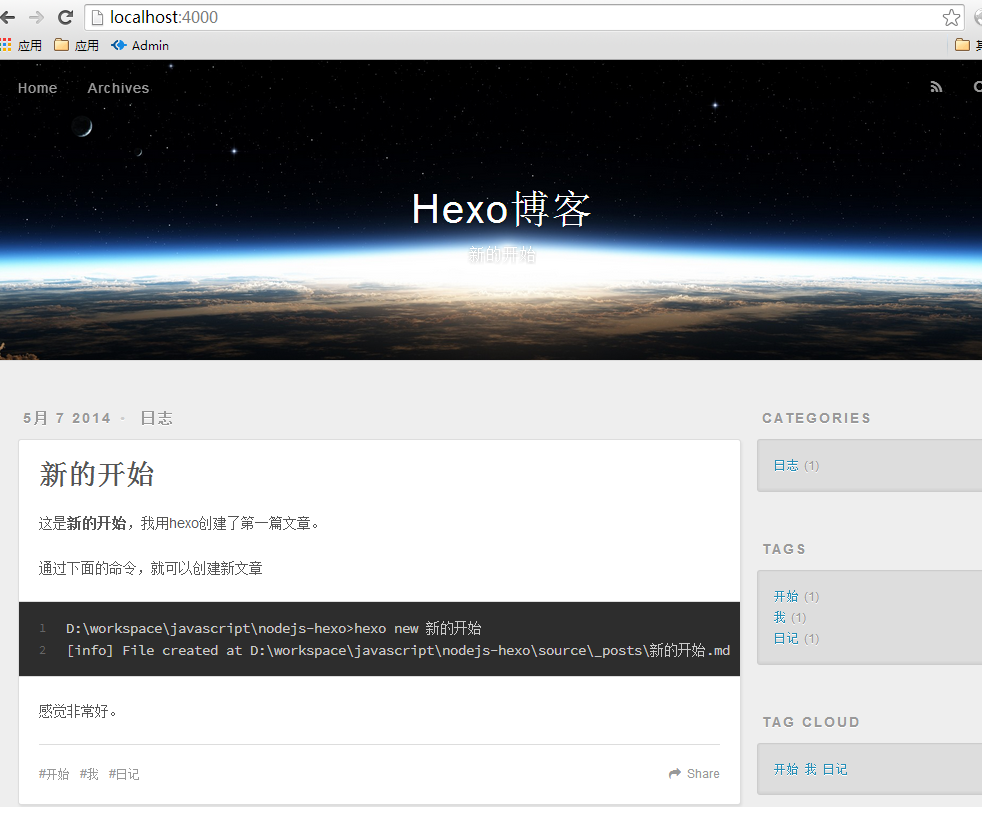
同时,网页的右侧还会出现Categories(目录),Tags(标签),Tag Cloud(标签云)的显示。
3.5 文章的语法
我们在写文章时,有一些语法的要求。
语法包括3部分:
- 基本信息:标题,发布日期,分类目录,标签,类型,固定发布链接
- 正文:markdown语法和Swig语法(掌握一个就行)
- 特殊标记:引用,链接,图片,代码块,iframe,youtube视频
3.5.1 基本信息
必须在文件的顶部,—的行之前的部分。如:
title: 新的开始
date: 2014-05-07 18:44:12
updated	: 2014-05-10 18:44:12
permalink: abc
tags:
- 开始
- 我
- 日记
categories:
- 日志
- 第一天

---
我们可以对刚才发的文章,做上面的修改,再看效果。
3.5.2 正文
hexo的正文要求使用markdown的语法,这里就不在多说,请自行查看markdwon的文档。
3.5.3 特殊标记
hexo对于一些有特殊标记 文字块,做了特殊的定义。
引用
# Swig语法
{% blockquote Seth Godin http://sethgodin.typepad.com/seths_blog/2009/07/welcome-to-island-marketing.html Welcome to Island Marketing %}
Every interaction is both precious and an opportunity to delight.
{% endblockquote %}

# Markdown语法
> Every interaction is both precious and an opportunity to delight.
代码块
# Swig语法
{% codeblock .compact http://underscorejs.org/#compact Underscore.js %}
.compact([0, 1, false, 2, ‘’, 3]);
=> [1, 2, 3]
{% endcodeblock %}

# Markdown语法
```{bash}
.compact([0, 1, false, 2, ‘’, 3]);
=> [1, 2, 3]
```
链接
{% link 粉丝日志 http://blog.fens.me true 粉丝日志 %}

# Markdown语法
[粉丝日志](http://blog.fens.me)
图片,对于本地图片,需要在source目录下面新建一个目录images,然后把图片放到目录中。
# Swig语法
{% img /images/fens.me.png 400 600 这是一张图片 %}
# Markdown语法

在浏览器中看到效果。
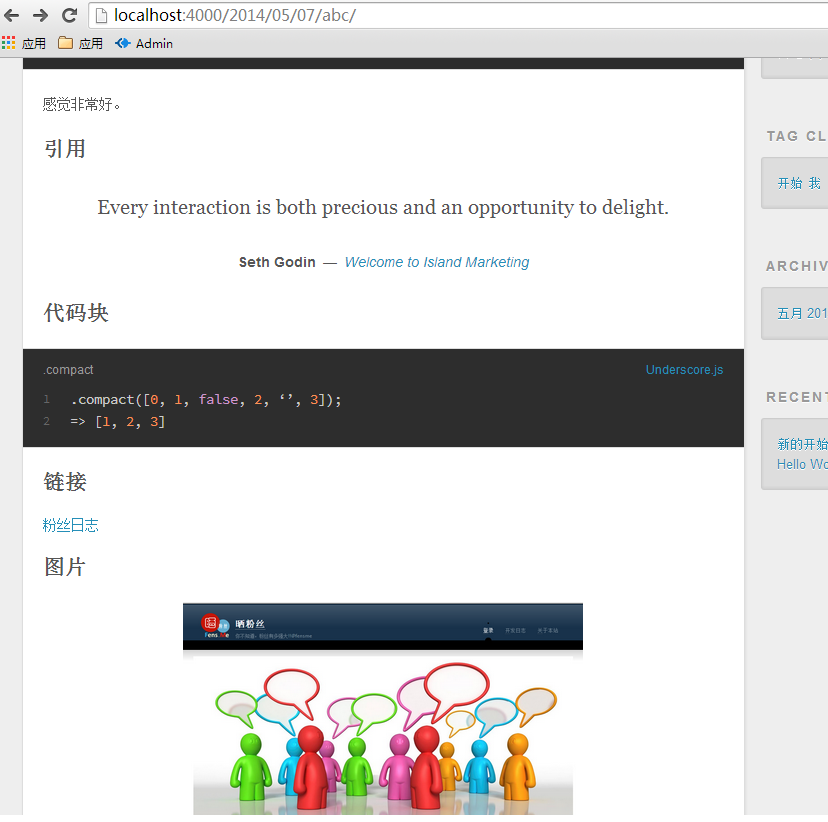
我们发现Swig的语法比markdown语法有更多的配置项,可以让页面更丰富,下面显示完整的基于Swig代码。
title: 新的开始
date: 2014-05-07 18:44:12
permalink: abc
tags:
- 开始
- 我
- 日记
categories:
- 日志
- 第一天

---

这是**新的开始**,我用hexo创建了第一篇文章。

通过下面的命令,就可以创建新文章
```{bash}
D:\workspace\javascript\nodejs-hexo>hexo new 新的开始
[info] File created at D:\workspace\javascript\nodejs-hexo\source\_posts\新的开始.md
```

感觉非常好。


## 引用
{% blockquote Seth Godin http://sethgodin.typepad.com/seths_blog/2009/07/welcome-to-island-marketing.html Welcome to Island Marketing %}
Every interaction is both precious and an opportunity to delight.
{% endblockquote %}

## 代码块
{% codeblock .compact http://underscorejs.org/#compact Underscore.js %}
.compact([0, 1, false, 2, ‘’, 3]);
=> [1, 2, 3]
{% endcodeblock %}

## 链接
{% link 粉丝日志 http://blog.fens.me true 粉丝日志 %}

## 图片
{% img /images/fens.me.png 400 600 这是一张图片 %}
4. 发布到项目到github
4.1 静态化处理
写完了文章,我们就可以发布了。要说明的一点是hexo的静态博客框架,那什么是静态博客呢?静态博客,是只包含html, javascript, css文件的网站,没有动态的脚本。虽然我们是用Node进行的开发,但博客的发布后就与Node无关了。在发布之前,我们要通过一条命令,把所有的文章都做静态化处理,就是生成对应的html, javascript, css,使得所有的文章都是由静态文件组成的。
静态化命令
D:\workspace\javascript\nodejs-hexo>hexo generate
[info] Files loaded in 0.895s
[create] Public: js\script.js
[create] Public: css\fonts\fontawesome-webfont.svg
[create] Public: css\fonts\FontAwesome.otf
[create] Public: css\fonts\fontawesome-webfont.ttf
[create] Public: css\fonts\fontawesome-webfont.eot
[create] Public: css\fonts\fontawesome-webfont.woff
[create] Public: fancybox\blank.gif
[create] Public: fancybox\fancybox_loading@2x.gif
[create] Public: fancybox\fancybox_overlay.png
[create] Public: css\images\banner.jpg
[create] Public: fancybox\fancybox_sprite.png
[create] Public: fancybox\jquery.fancybox.css
[create] Public: fancybox\fancybox_loading.gif
[create] Public: fancybox\fancybox_sprite@2x.png
[create] Public: fancybox\jquery.fancybox.js
[create] Public: fancybox\jquery.fancybox.pack.js
[create] Public: fancybox\helpers\jquery.fancybox-buttons.js
[create] Public: fancybox\helpers\fancybox_buttons.png
[create] Public: fancybox\helpers\jquery.fancybox-buttons.css
[create] Public: fancybox\helpers\jquery.fancybox-media.js
[create] Public: fancybox\helpers\jquery.fancybox-thumbs.css
[create] Public: fancybox\helpers\jquery.fancybox-thumbs.js
[create] Public: archives\index.html
[create] Public: images\fens.me.png
[create] Public: archives\2014\index.html
[create] Public: archives\2014\05\index.html
[create] Public: css\style.css
[create] Public: index.html
[create] Public: categories\日志\index.html
[create] Public: categories\日志\第一天\index.html
[create] Public: 2014\05\07\abc\index.html
[create] Public: 2014\05\07\hello-world\index.html
[create] Public: tags\开始\index.html
[create] Public: tags\我\index.html
[create] Public: tags\日记\index.html
[info] 35 files generated in 0.711s
在本地目录下,会生成一个public的目录,里面包括了所有静态化的文件。
4.2 发布到github
接下来,我们把这个博客发布到github。
在github中创建一个项目nodejs-hexo,项目地址:https://github.com/bsspirit/nodejs-hexo
编辑全局配置文件:_config.yml,找到deploy的部分,设置github的项目地址。
deploy:
  type: github
  repo: git@github.com:bsspirit/nodejs-hexo.git
然后,通过命令进行部署。
D:\workspace\javascript\nodejs-hexo>hexo deploy
[info] Start deploying: github
[info] Setting up GitHub deployment...
Initialized empty Git repository in D:/workspace/javascript/nodejs-hexo/.deploy/.git/
[master (root-commit) 43873d3] First commit
 1 file changed, 0 insertions(+), 0 deletions(-)
 create mode 100644 placeholder
[info] Clearing .deploy folder...
[info] Copying files from public folder...

// 省略部分输出

Branch gh-pages set up to track remote branch gh-pages from github.
To git@github.com:bsspirit/nodejs-hexo.git
 * [new branch]      gh-pages -> gh-pages
[info] Deploy done: github
这个静态的web网站就被部署到了github,检查一下分支是gh-pages。gh-pages是github为了web项目特别设置的分支。
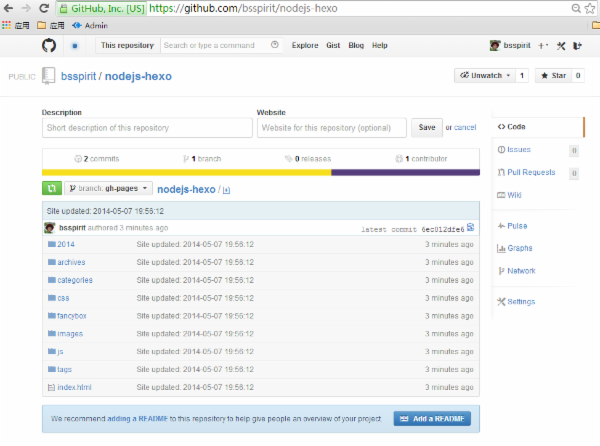
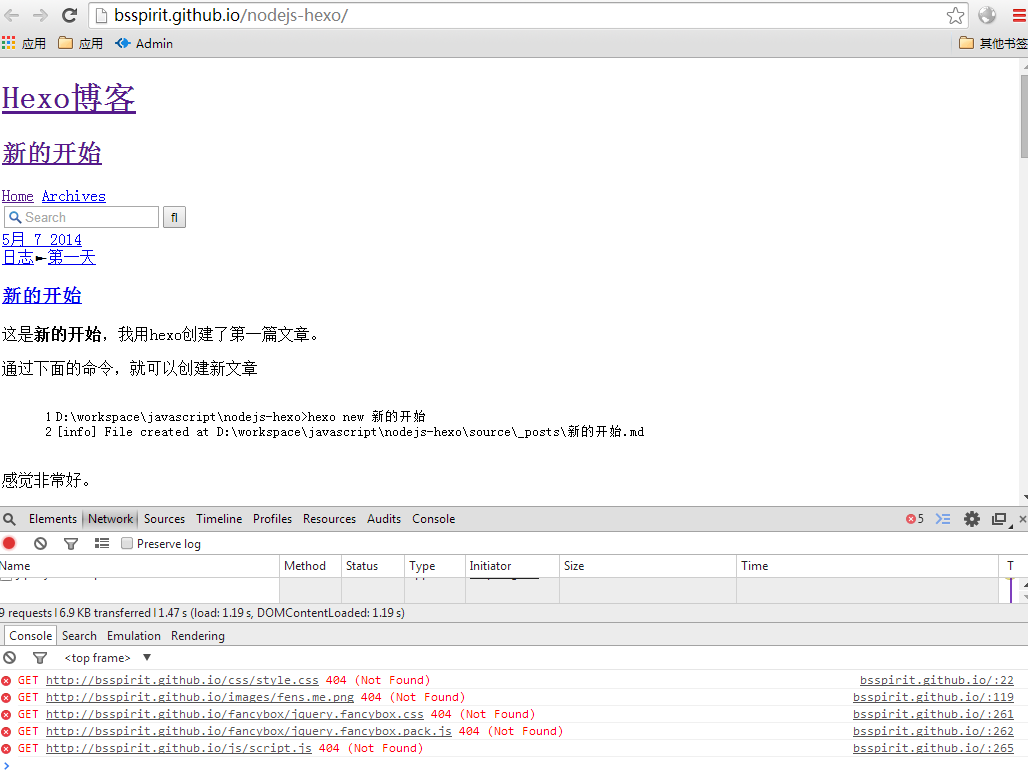
然后,点击”Settings”,找到GitHub Pages,提示“Your site is published at http://bsspirit.github.io/nodejs-hexo”,打开网页 http://bsspirit.github.io/nodejs-hexo,就是我们刚刚发布的站点。
4.3 设置域名
看起来css和js的加载路径不太对,不过没有关系。接下来,我们配置好域名,这个路径就会正确的。比如,我有一个域名是 52u.me,为了中国DNS解析,我先把域名绑定在Dnspod管理,再做跳转。
域名有两种配置方式:
- 主域名绑定:直接绑定主域名52u.me
-
子域名绑定:绑定子域名blog.52u.me
4.3.1 主域名绑定
在dnspod控制台,设置主机记录@,类型A,到IP 192.30.252.153。
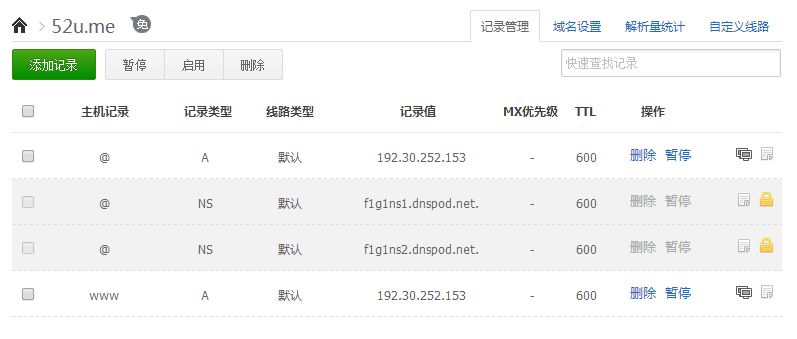
大概等几分钟会生效。判断生效,对域名执行ping或者dig命令。
D:\workspace\javascript\nodejs-hexo>ping 52u.me

正在 Ping 52u.me [192.30.252.153] 具有 32 字节的数据:
来自 192.30.252.153 的回复: 字节=32 时间=321ms TTL=48
来自 192.30.252.153 的回复: 字节=32 时间=325ms TTL=48
来自 192.30.252.153 的回复: 字节=32 时间=329ms TTL=48
来自 192.30.252.153 的回复: 字节=32 时间=326ms TTL=48

192.30.252.153 的 Ping 统计信息:
    数据包: 已发送 = 4,已接收 = 4,丢失 = 0 (0% 丢失),
往返行程的估计时间(以毫秒为单位):
    最短 = 321ms,最长 = 329ms,平均 = 325ms
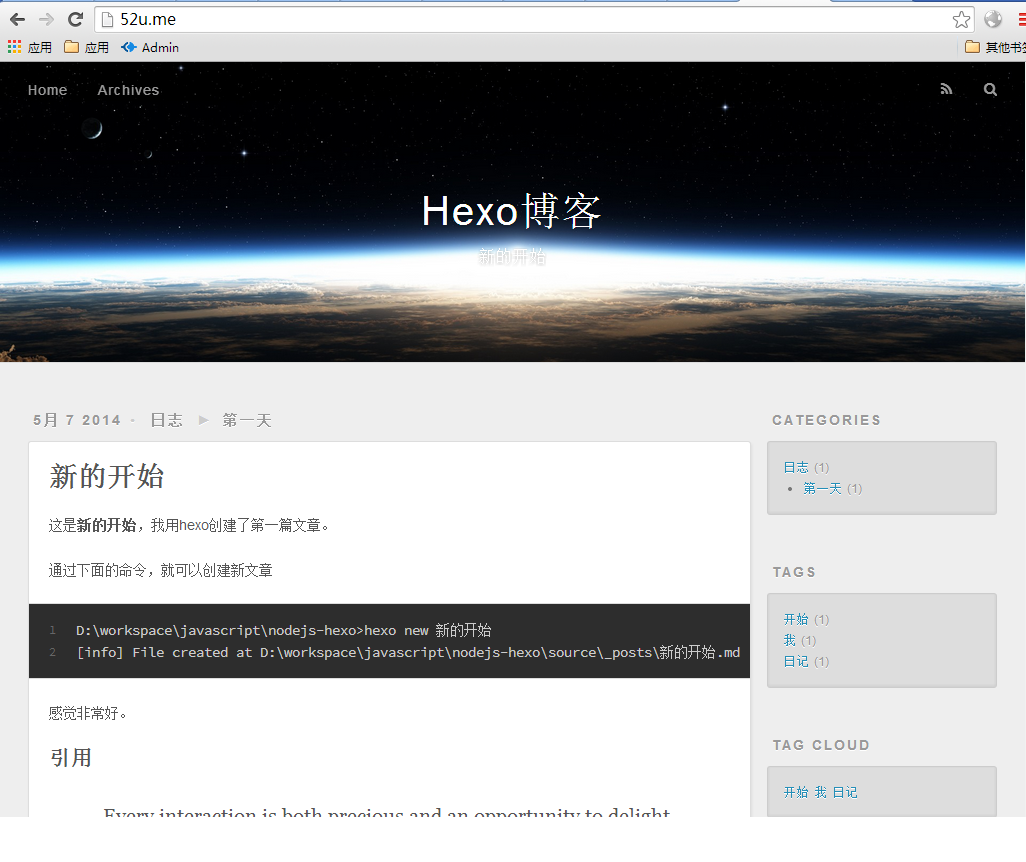
在github项目中,新建一个文件CNAME,文件中写出你要绑定的域名52u.me。通过浏览器,访问http://52u.me,就打开了我们建好的博客站点。
4.3.2 子域名绑定
有时候,我们的主域名正在使用着,需要先新建一个博客绑定到子域名,比如: blog.52u.me。
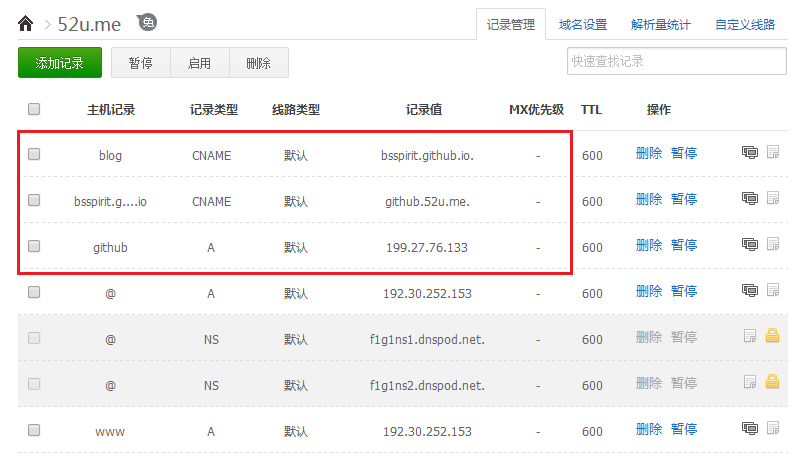
在dnspod控制台,我们要做3步设置。
- 设置主机记录github,类型A,到IP 199.27.76.133
- 设置主机记录bsspirit.github.io,类型CNAME,到github.52u.me.
- 设置主机记录blog,类型CNAME,到 bsspirit.github.io
记得我们还要修改文件CNAME,改为blog.52u.me。通过浏览器,访问http://blog.52u.me,就可以打开了我们的博客站点了,而这次用的是二级域名。
由于每次执行deploy的时候,gh-pages分支所有的文件都会被覆盖,所以我们最好在source目录下创建这个CNAME文件,这样每次部署就不用动手创建了。
5. 替换皮肤
博客系统流行的原因,是因为他的个人性,而皮肤正式个性化的一种体现。
利用hexo替换皮肤,还是比较简单的,3步完成。
5.1 找到一个皮肤或者自己开发一个皮肤
打开hexo的皮肤列表页面,你可以找到很多的皮肤,网页地址: https://github.com/tommy351/hexo/wiki/Themes。
5.2. 放到themes目录下
比如,我觉得pacman(https://github.com/A-limon/pacman)这个皮肤还不错,我就可以下载皮肤到themes目录下面。
通过git命令下载皮肤
git clone https://github.com/A-limon/pacman.git themes/pacman5.3. 在_config.yml指定皮肤
编辑文件_config.yml,找到theme一行,改成 theme: pacman
本地启动hexo服务器,打开浏览器 http://localhost:4000
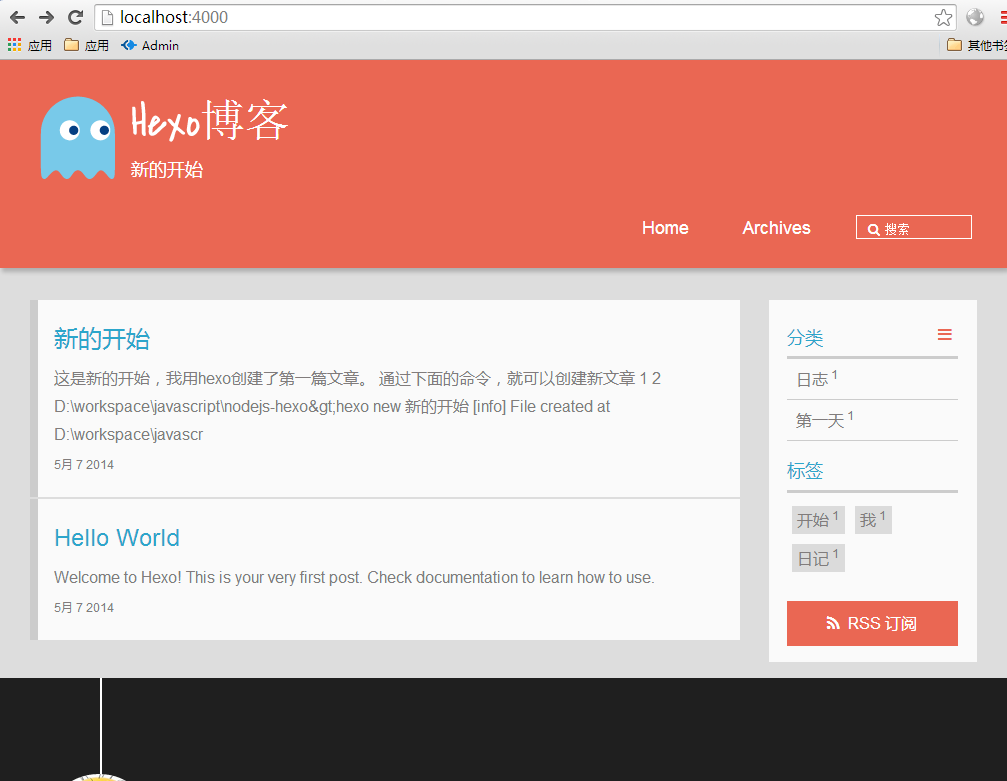
新皮肤的效果还不错吧,然后静态化处理,再发布到github,就完成了站点的改版。
6. 配置常用插件
6.1 Disqus评论系统
首先登陆http://disqus.com/ 网站,申请一个新网站的shortname,配置到_config.yml文件里,disqus_shortname: blog52ume
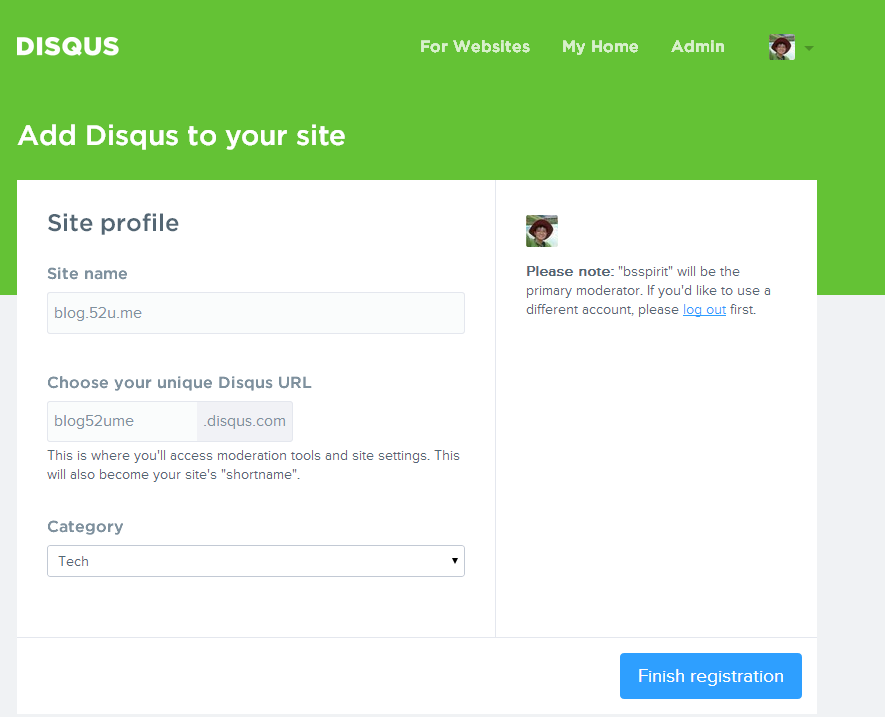
然后,你会得到一段js代码,把他复制文件 themes/pacman/layout/_partial/comment.ejs 。继续修改themes/pacman/layout/layout.ejs文件,增加对comment.ejs的引用。具体修改请详见代码。
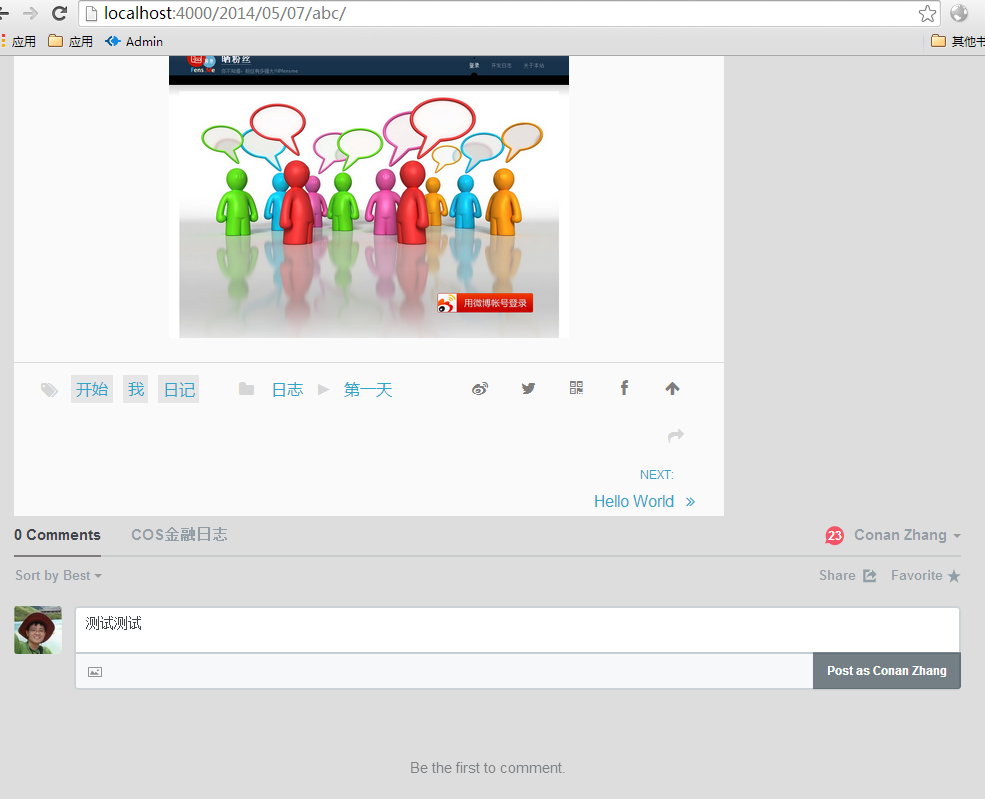
这样,评论系统就增加好了!!
6.2 RSS订阅
这个功能非常简单,因为已经有人写好了插件,我们只要安装插件就行了。
D:\workspace\javascript\nodejs-hexo>npm install hexo-generator-feed
npm WARN package.json hexo-site@2.5.5 No readme data!
npm http GET https://registry.npmjs.org/hexo-generator-feed
npm http 304 https://registry.npmjs.org/hexo-generator-feed
npm http GET https://registry.npmjs.org/ejs/0.8.5
npm http GET https://registry.npmjs.org/lodash/2.4.1
npm http 304 https://registry.npmjs.org/ejs/0.8.5
npm http 200 https://registry.npmjs.org/lodash/2.4.1
npm http GET https://registry.npmjs.org/lodash/-/lodash-2.4.1.tgz
npm http 200 https://registry.npmjs.org/lodash/-/lodash-2.4.1.tgz
hexo-generator-feed@0.1.0 node_modules\hexo-generator-feed
├── ejs@0.8.5
└── lodash@2.4.1
启动服务器,用浏览器打开 http://localhost:4000/atom.xml, 就可以看到RSS已经生效了。
6.3 Sitemap站长地图
同样是一条命令,就可以完成。
D:\workspace\javascript\nodejs-hexo>npm install hexo-generator-sitemap
npm WARN package.json hexo-site@2.5.5 No readme data!
npm http GET https://registry.npmjs.org/hexo-generator-sitemap
npm http 304 https://registry.npmjs.org/hexo-generator-sitemap
npm http GET https://registry.npmjs.org/ejs/0.8.5
npm http GET https://registry.npmjs.org/lodash/2.4.1
npm http 304 https://registry.npmjs.org/lodash/2.4.1
npm http 304 https://registry.npmjs.org/ejs/0.8.5
hexo-generator-sitemap@0.1.1 node_modules\hexo-generator-sitemap
├── ejs@0.8.5
└── lodash@2.4.1
启动服务器,用浏览器打开 http://localhost:4000/sitemap.xml, 就可以看到sitemap已经生效了。
6.4 mathjax数学公式
有时候,我们还需要一些高级功能,比如在网页上显示数学公式。
新建一个文件themes/pacman/layout/_partial/mathjax.ejs,找到mathjax的调用代码复制到文件。
<!-- mathjax config similar to math.stackexchange -->

<script type="text/x-mathjax-config">
  MathJax.Hub.Config({
    tex2jax: {
      inlineMath: [ [‘$‘,‘$‘], ["\\(","\\)"] ],
      processEscapes: true
    }
  });
</script>

<script type="text/x-mathjax-config">
    MathJax.Hub.Config({
      tex2jax: {
        skipTags: [‘script‘, ‘noscript‘, ‘style‘, ‘textarea‘, ‘pre‘, ‘code‘]
      }
    });
</script>

<script type="text/x-mathjax-config">
    MathJax.Hub.Queue(function() {
        var all = MathJax.Hub.getAllJax(), i;
        for(i=0; i < all.length; i += 1) {
            all[i].SourceElement().parentNode.className += ‘ has-jax‘;
        }
    });
</script>

<script type="text/javascript" src="http://cdn.mathjax.org/mathjax/latest/MathJax.js?config=TeX-AMS-MML_HTMLorMML">
</script>
在themes/pacman/layout/_partial/after_footer.ejs 的最后一行,增加对mathjax的引用,详细内容请查看源代码。
我们修改文章:source/_posts/新的开始.md
增加公式:
## 公式
$$J\_\alpha(x)=\sum _{m=0}^\infty \frac{(-1)^ m}{m! \, \Gamma (m + \alpha + 1)}{\left({\frac{x}{2}}\right)}^{2 m + \alpha }$$
启动服务器,查看效果:

当然,除了这些还有很多需要的功能,像Google分析,百度统计,微薄转发等,大家可以自己找找,也可以自己开发一些插件!
最后,本文的中代码已经上传的github,https://github.com/bsspirit/nodejs-hexo。 其中master分支是项目源代码,gh-pages分支是发布的站点。
Hexo框架确实如同它介绍中的话: “A fast, simple & powerful blog framework, powered by Node.js.”,Noder还等什么,赶紧搭建一个博客吧!!
原文:http://blog.csdn.net/u011001084/article/details/51253928